


Markdown Widget
A Markdown Widget allows users to insert formatted, human-readable content directly into the dashboard—enhancing usability and operator efficiency by presenting instructions, checklists, and documentation alongside live machine data.
Industrial use case and scenario:
In a manufacturing environment, a Markdown Widget embedded in the machine monitoring dashboard allows operators to access critical, human-readable instructions—like standard operating procedures, safety protocols, quality assurance steps, and fault-handling guides—right next to live machine data. This eliminates the need to consult separate manuals or documents, reducing response time, minimizing errors, improving safety compliance, and enhancing overall operational efficiency, especially for new staff who benefit from real-time guidance during onboarding and active shifts.
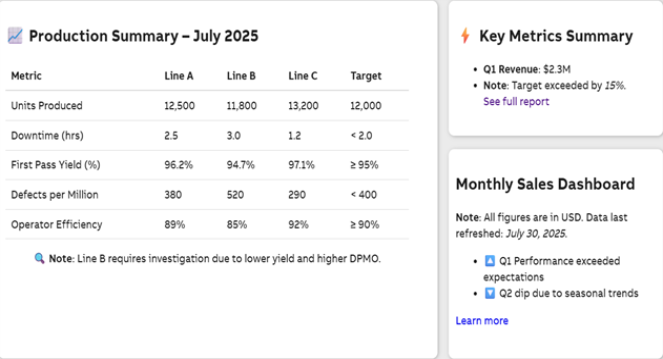
Markdown Widget
Configuration Options
To learn about common configuration options, refer to the following topics from the Edit Widgets section:
|
Label |
Description |
|
DataSource |
See DataSource |
|
Events |
See Events |
|
Link |
See Link |
|
Expressions |
See Expressions |
|
Help |
See Help |
|
Refresh |
See Refresh |
Styles
On the Styles tab, add the following details to create the Markdown Widget:
|
Field |
Description |
|---|---|
| Markdown | Enter the Markdown text to be displayed in dashboard. |
|
Background Color |
Select the required color or type the required color code for the background of widget to be displayed in dashboard. |
|
Text Color |
Select the color or type the required color for the text to be displayed in dashboard. |
| Format |
This field helps in formatting the template. |
| Template | Click the dropdown and select a template that defines the layout or structure for dynamically organizing and displaying Markdown data using placeholders. |
| Format | This field defines the format of the selected template. |
|
Text Align |
This field defines the text alignment for the selected template. |
|
Number Format |
Click the dropdown and select a number format to apply to the template. |
|
Unit of Measurement |
This field allows you to provide a unit of measure for the selected template. You can either manually enter the Unit of Measurement value or click the + icon to generate the Parameter Value Configuration pop-up and select the value. For more information, see Variable Usage. |
|
Date Format |
This field provides the date format for the selected template. Click the dropdown and select a template to apply the date format. |
|
Currency |
This field provides the currency code for the selected template. The currency code always prefixes the value. You can either manually enter the Currency value or click the + icon to generate the Parameter Value Configuration pop-up and select the value. For more information, see Variable Usage. |
|
Custom ID |
The value in this field gets automatically filled out by the dashboard. This field helps to identify the widgets while configuring events. This can be user-defined as well. |
|
Export CSV |
Enable this checkbox to download the information available in the Markdown widget in csv format. |
|
Export JPEG |
Enable this checkbox to export in JPEG format. |
|
Export PNG |
Enable this checkbox to export in PNG format. |
|
Frameless |
Enable this checkbox to hide the frame around the widget. |
|
Fullscreen |
Enable this checkbox to view the widget in full-screen mode. |